Review gates
If you've gone through a run or two, you've already seen all three gates in action — the pipeline halts after the filter completes, again after scoring and before PDF analysis, and once more before briefing synthesis, each time showing you intermediate results. All three gates are on by default. You can click through any single one without turning it off, and each can be disabled in Settings once you stop catching things at it.
This page covers what each gate shows, what to do there, and when it's worth turning any of them off.
Where they sit in the pipeline
  1. Fetch papers
      │
  2. Filter papers      (YES / MAYBE / NO triage)
      │
      ⏸   Gate 1 — review the buckets, fix obvious errors
      │
  3. Score abstracts    (0–10 + justification)
  3.5. Post-process     (optional consistency pass)
      │
      ⏸   Gate 2 — review scores, star papers for deep analysis
      │
  4. Analyze PDFs       (full-text read of the top N)
      │
      ⏸   Gate 3 — star / dismiss / comment before synthesis
      │
  5. Briefing           (editorial synthesis + hallucination audit)
All three gates pause a running pipeline until you click a Continue → button. They don't cost tokens — skipping them doesn't save money, only time — but they do catch bad runs early.
Gates 2 and 3 also show the projected spend of the stage they hold back. The score-review banner shows how many papers will be deep-read and a rough cost on your PDF model, updating live as you star and exclude; the pre-briefing banner does the same for the briefing. The numbers come from average token counts and the pricing snapshot in the model registry — planning figures, not a bill. If the registry has no price for the selected model, the line is hidden. Each gate presents the same banner — a one-line summary, a Continue → button, and a Skip remaining gates this run link — at the head of the section it gates. When a gate appears, the page scrolls it into view, so a pause far down the page doesn't look like a stall. The progress timeline marks the stage the gate holds back with ◐ and a line such as "Waiting for you: review the scores below", and its progress bar hides until you continue. While a gate is waiting, the browser tab title changes to "⏸ Waiting for your review — Aparture", so a backgrounded run signals when it needs you; the title restores when the run resumes.
Gate 1: after the quick filter
What it does
The quick filter (Stage 2) is cheap: the filterModel slot (default gemini-3.5-flash-lite) runs YES / MAYBE / NO triage on every paper fetched from arXiv, along with a one-sentence summary and a short justification per paper. Its job is to cut the volume before you spend real tokens on scoring and deep analysis.
When pauseAfterFilter is on (default: on), the pipeline halts immediately after the filter stage. A review banner — "Filter complete — review verdicts before scoring" with a Continue to scoring → button — appears at the head of the filter results, which fill in below it grouped into three buckets.
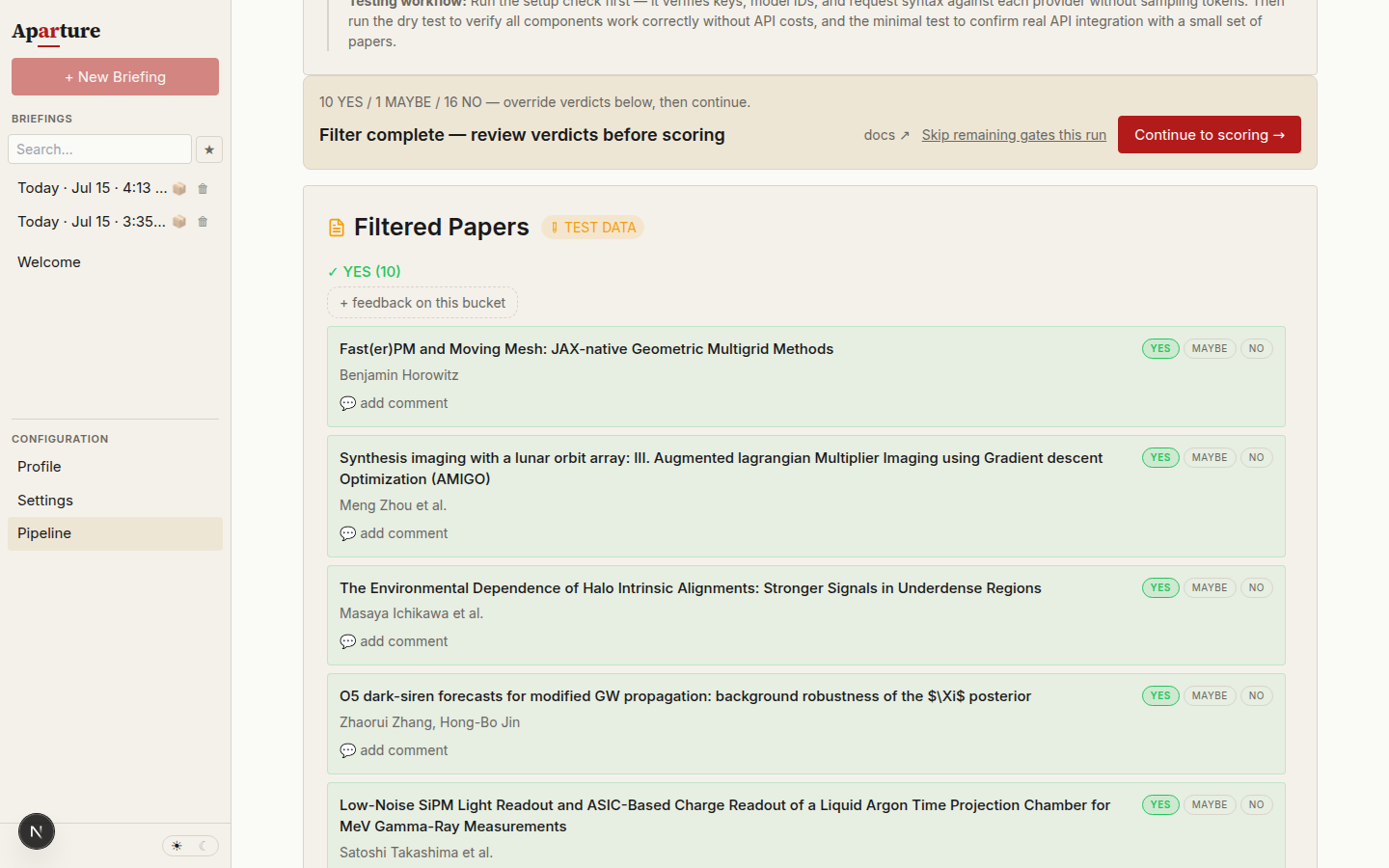
Gate 1 on a dry run (mock verdicts). The banner summarises the bucket counts; each row below carries clickable YES / MAYBE / NO verdict pills.
What you see
Each paper in the list shows its title and authors, the filter's one-sentence summary (italic), and a "Verdict reasoning:" line with the model's justification. On the right are three verdict buttons — YES, MAYBE, NO. The current verdict is filled; the other two are outlined. Clicking a different one moves the paper to that bucket and marks the choice with a small ⇄ to indicate it was overridden.
Above the buckets sits Continue to scoring →, which advances the pipeline with whatever verdicts are in effect at that moment, overrides included.
What to do there
If the filter got something right, do nothing. Most verdicts will be fine — the filter model is decent at its job.
When the filter gets something wrong, click a verdict to override. Moving a paper from NO to YES or MAYBE brings it into scoring — do this when you think the filter missed something relevant. Moving a paper from YES to NO excludes it from scoring, which saves you tokens on something you already know isn't a fit.
Every override is logged as a filter-override feedback event the moment you click. The verdict pills stay usable after the run ends, so you can still correct a verdict later; a change then is saved as feedback and doesn't re-run anything. These events act as scope signals downstream: a pattern of NO → YES overrides suggests your profile is too narrow in that area; the reverse suggests it's too broad. The refinement flow sees them. See Giving feedback → The filter-review gate for the full mechanics.
In practice
A few patterns come up repeatedly:
- The filter dismisses a paper adjacent to your interests but not a direct match. Override to MAYBE and see what deep analysis makes of it. This is the most common case.
- The filter accepts a paper whose abstract is mostly marketing. Override to NO to skip spending tokens on a likely dud.
- The filter is confused by a paper straddling multiple fields. Override to match your actual interest and note whether it's a symptom your profile could address.
You don't have to review every paper. Overrides usually happen in the YES and MAYBE buckets; the NO bucket can often be left alone unless something specific catches your eye.
Gate 2: before PDF analysis (score review)
What it does
After Stage 3.5 (post-processing), the pipeline has a ranked list of scores but hasn't read any PDFs yet. This is where you decide which papers get read in full.
When pauseBeforeDeepAnalysis is on (default: on), the pipeline halts here. A review banner with a Continue to PDF analysis → button sits at the head of the full scored list, split into three collapsible groups.
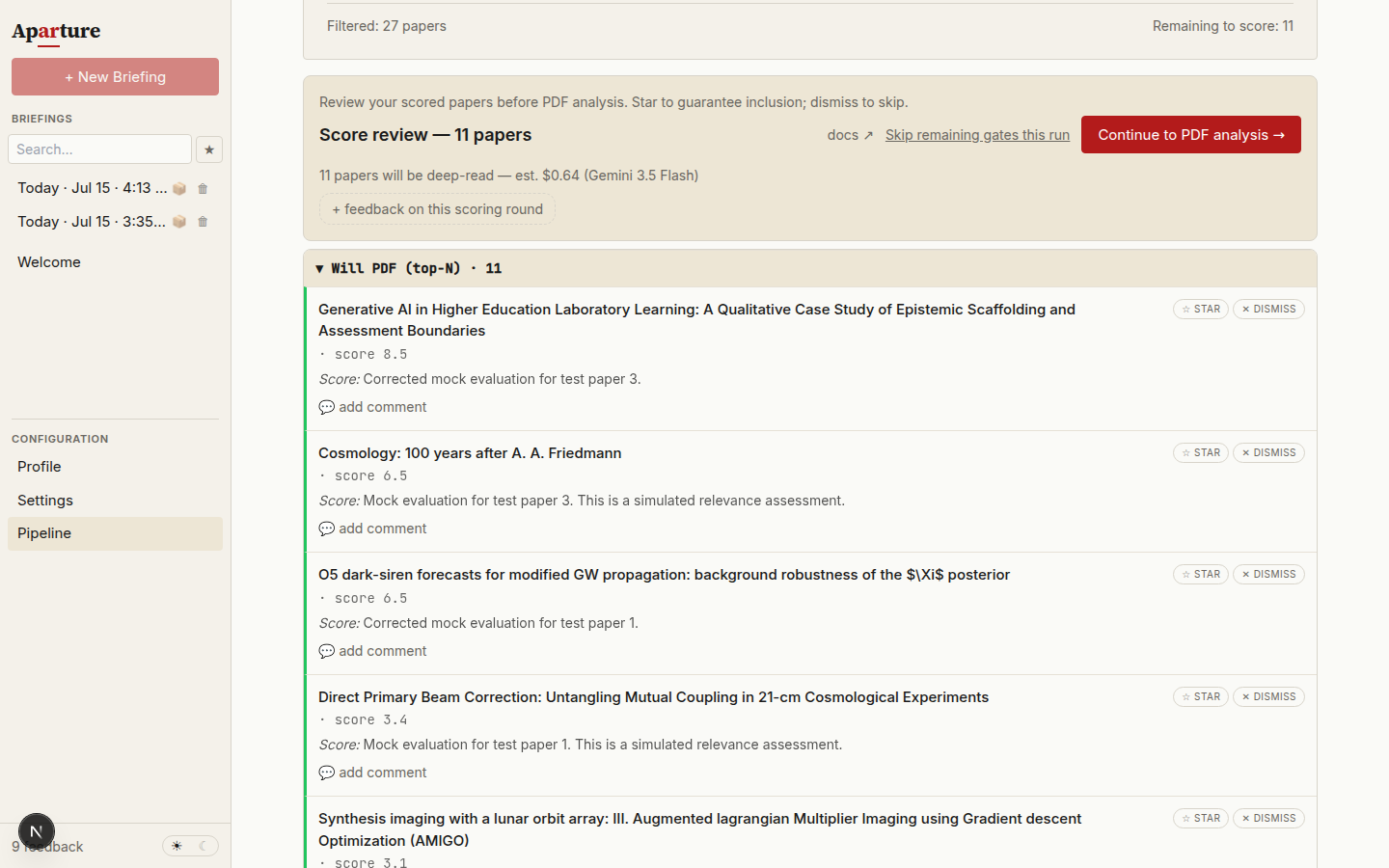
Gate 2 on a dry run. The banner carries the deep-read cost estimate; the Will PDF group below lists the papers headed to PDF analysis, each with STAR and DISMISS controls.
What you see
Three groups, each collapsible:
- Will PDF (top-N) — expanded by default. These are the papers that would go to Stage 4 as things stand: the top N by score, where N is your Papers to Analyze setting (default 30).
- Borderline — collapsed by default. The next chunk of papers after the top-N cutoff, up to
min(maxDeepAnalysis, 50)papers. These are the candidates most worth inspecting if you think the default cutoff is landing in the wrong place. - Low score — collapsed. Everything below the borderline band.
Each row in the list shows the paper's title and authors, its score (pre-analysis), the scoring model's justification, and — when the paper appeared in a past run — a muted "seen ‹date›" duplicate chip with a small history icon. On the right of each row sit three controls:
- STAR: guarantees this paper gets PDF-analysed, regardless of where its score sits.
- DISMISS: removes this paper from PDF analysis for this run.
- 💬 add comment: opens a small text box to attach a note to the paper. Does not change whether the paper goes to PDF.
The selection logic
The final set of papers sent to Stage 4 is additive:
PDF set = (top-N by score) ∪ {papers you starred} − {papers you dismissed}Stars can reach into the Borderline or Low score groups and pull papers up. Dismissals can remove papers from the top-N. If you star several borderline papers, the final PDF set may exceed maxDeepAnalysis — that's intentional, not a bug: your explicit choices override the automatic cutoff.
Starred papers carry a guarantee all the way through: even if a PDF-analysed paper's finalScore ends up lower than the finalOutputCount cutoff, starred papers always appear in finalRanking and therefore in the briefing.
Round-level note
Inside the gate banner, under the cost estimate, sits a free-text field labelled "+ feedback on this scoring round". This is for observations about the scoring run as a whole — "scores feel compressed, everything is bunched between 5 and 7", "filter let through a lot of tangential ML papers this time". It isn't attached to any single paper; instead it flows into the next profile-refinement call as a run-level observation. Leave it blank if nothing's worth noting.
Skip remaining gates this run
A small Skip remaining gates this run link sits in the top-right of the gate banner, next to the Continue button — on this gate, Gate 1, and Gate 3. Clicking it bypasses all subsequent default-on gates for the rest of this run — useful when you want a single unattended run without changing your persistent settings. It does not modify any setting; the next run will still pause normally.
Click Continue to PDF analysis → when you're done. Stage 4 starts immediately with the adjusted paper set.
Gate 3: before briefing synthesis
What it does
After Stage 4 (PDF analysis) completes, the pipeline has scores, deep-analysis summaries, and a ranked list of papers. The next step is synthesis: the briefing model reads your profile, the analysed papers, and your feedback, then writes the executive summary, themes, and paper cards.
When pauseBeforeBriefing is on (default: on), the pipeline halts before synthesis runs. A review banner — "Analysis complete — review before briefing" with a Continue to briefing → button — sits at the head of the Analysis Results list, showing every PDF-analysed paper, score, and summary.
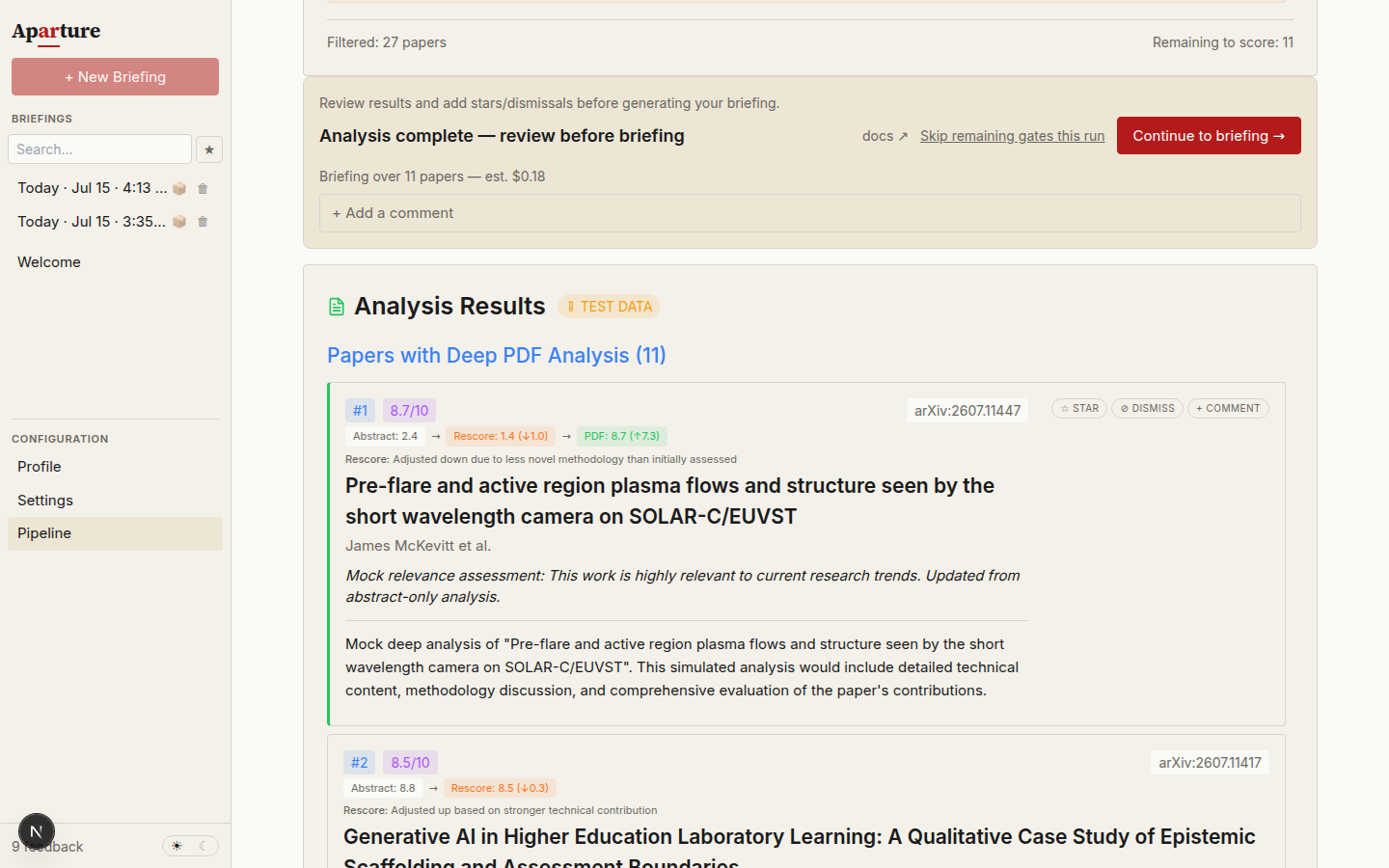
Gate 3 on a dry run. Stars, dismisses, and comments given on the results below feed directly into the briefing that's about to be written.
What to do there
Star the papers you care about and dismiss the ones you don't. Both signals feed directly into the synthesis prompt: starred papers anchor themes and get the richest "why it matters" treatment; dismissed papers get deprioritised or explained away; everything else is handled according to its relevance score. Leave a + comment on a paper to have your note woven into its paragraph in the briefing.
To steer the briefing as a whole, use + Add a comment in the gate's banner. The note goes to the briefing writer as an editorial instruction for this run: "Lead with the diffusion-models cluster", or "I want more methodology depth in the writeup". After you save it, the banner lists it under "Sent to the briefing writer with this run". The note can't override the briefing's sourcing rules, and it's saved as a general comment, so the refinement flow sees it later too.
Stars given here have a different meaning than stars given at Gate 2. A star at Gate 2 says "analyse this paper's PDF"; a star at Gate 3 (or on a rendered briefing) says "I liked this paper". Both are stored as star events — the meaning is contextual based on when you gave it.
The difference between Gate 3 and the same controls on the rendered briefing is timing. Feedback given here shapes the briefing that's about to be written. Feedback given while reading the briefing is recorded against the paper but only affects future runs — via the refinement flow, where paper-grounded signals are among the strongest inputs the profile revision sees.
Click Continue to briefing → when you're done. Synthesis runs, then the hallucination audit runs, then the briefing renders on its own page. The results list stays interactive while synthesis is in flight.
Stopping a run
Stop ends the run at its next checkpoint and frees the controls at once, so you can start a new run straight away. Calls already sent to a provider still finish, and the provider bills them. The stopped run's late results are discarded instead of overwriting the new run's state, and a stopped run never saves a briefing.
Progression: from on by default to off
All three gates start on because they catch bad runs early — especially useful in the first week or two, when you're still developing a sense of what your profile should say and what the pipeline does with it.
After five or ten successful briefings, the gates can start feeling like more friction than signal. At that point it's worth considering which ones still earn their keep:
- Turn off
pauseAfterFilterfirst. The filter is usually right enough that override-saving is marginal after a while, and scoring is cheap to over-run. - Keep
pauseBeforeDeepAnalysison while you're still calibrating. This is the best place to rescue papers the scorer ranked low but that you know from the abstract are worth reading in full — and to exclude obvious duds before they consume expensive PDF tokens. - Keep
pauseBeforeBriefingon longer. This is where your stars, dismisses, and comments actively steer the synthesis. If you're not giving feedback at this gate, the briefing tends to drift toward generic. - All three off once you trust the setup. Runs become fully unattended: click Start Analysis, come back later, read the briefing.
There's no harm in leaving all three on permanently if the workflow suits you. The gates are UI-only — they don't cost tokens, and skipping them doesn't save money.
The Skip remaining gates this run link on each gate offers a middle path: you can engage with one gate and bypass the rest without touching any settings. Useful for days when you just want a quick check of the filter output before letting the rest of the run go unattended.
When to re-enable a gate you'd disabled
Three situations in which flipping a gate back on tends to pay off (applies to all three gates):
- You made a big profile change. A freshly rewritten profile may be poorly calibrated, so the filter may be over- or under-selecting. Turning
pauseAfterFilterback on for a few runs catches this early. - You added new arXiv categories. You haven't built a mental model of what comes through the filter in those categories yet.
- You switched to a much cheaper (or much more capable) model. Model behaviour changes, and the first few runs with a new model are worth watching.
Broadly, the gates are worth having on while you're still calibrating the pipeline to your interests, and worth disabling once a few runs in a row have landed well without intervention.
Where to toggle them
All three gates live in Settings under Review & confirmation, as checkboxes:
- Pause after filter to review overrides — controls Gate 1 (
pauseAfterFilter). - Pause before deep analysis — controls Gate 2 (
pauseBeforeDeepAnalysis). - Pause before briefing to review scores and add feedback — controls Gate 3 (
pauseBeforeBriefing).
Two sibling checkboxes nearby — Auto-retry briefing if hallucination check returns YES (on by default) and …MAYBE (off by default) — govern the briefing retry loop, not the pause gates.
Toggles are disabled while a pipeline run is in progress (you can't change gate behaviour mid-run), and changes take effect on the next run.
No per-run toggle — but there's a shortcut
Settings are global, not per-run. For a one-off unattended run without changing settings, use the Skip remaining gates this run link on any gate — it bypasses all subsequent default-on gates for that run only.
Next
Tuning the pipeline → — past the gates, the rest of the knobs sit in Settings: model slots, batch sizes, concurrency, score thresholds, and retry behaviour.
Also worth reading:
- The feedback detail behind overrides, stars, and dismisses. → Giving feedback
- What happens at each stage, not just at the gates. → Pipeline