Reading a briefing
A briefing is organized to answer one practical daily question: which of the new papers warrant opening the full PDF, and which only need a brief scan. The page places an editorial executive summary at the top, priority-ordered thematic clusters beneath it, and individual paper cards inside each theme so you can triage the day's literature in a few minutes.
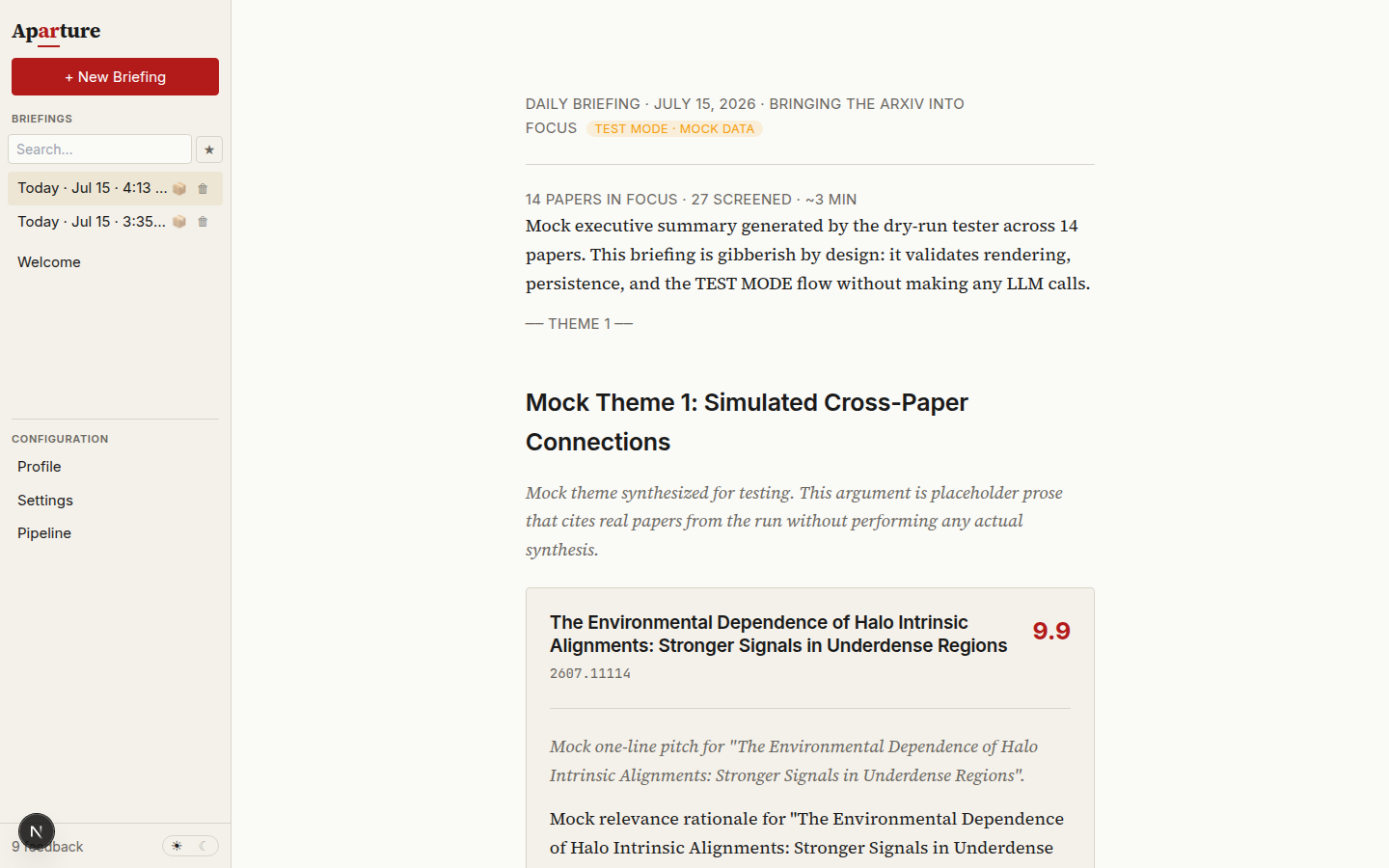
The briefing reading surface shown from a dry run with the TEST MODE badge and mock prose. A production briefing uses the identical layout populated with your analyzed papers.
What's on the page
From top to bottom, the briefing view stacks the header, executive summary, thematic sections, editor questions, and verification panels:
Header
Directly beneath the date, a single metadata line reports the number of papers in focus, the total number of papers screened, the estimated reading time, and the claims-check status (claims checked, claims check flagged N claims, or claims check did not run). When claims are flagged or the check did not run, the status renders in amber so that you see the audit state before reading the prose.
Executive summary
The executive summary opens the briefing with two to four paragraphs of serif prose (typically 200 to 400 words). When your reading time is limited, the executive summary alone captures the main developments of the run.
The first paragraph states the primary headline across the current briefing's papers, anchored by any papers you starred at Gate 3 before synthesis. The middle paragraphs trace the thematic clusters and their connections, or note explicitly when the day's submissions span unrelated topics. The final paragraph concludes with a concrete reading recommendation ("if you read one paper today, make it [arxivId] because…"), providing a direct entry point into the detailed cards below.
Themes
Below the executive summary sit two to five themes, ordered by priority so that the theme containing your highest-scored and starred papers appears first. Each theme groups papers that share a methodological approach, scientific domain, or conceptual tension.
Every paper card renders in full once, inside the first theme that references it. If a subsequent theme also references that paper, the later theme lists it under an "Also in this theme (shown above)" pointer to avoid duplicating cards. Any final-round paper that the synthesis model omitted from all themes is placed in a trailing Other papers group so that every analyzed paper remains visible.
Each theme opens with a numbered heading phrased as a substantive observation (for example, "1. Interpretability converges on attention heads" rather than a generic topic label), followed by a two-to-four-sentence italic argument explaining what unites the cluster and where the papers agree or conflict. Methodological tensions and debates between papers are developed directly inside the theme argument.
Paper cards
Each theme contains one or more paper cards summarizing individual papers with enough detail to decide whether to open the PDF:
| Part | What it shows |
|---|---|
| Score badge | A 0.0–10.0 relevance score (to one decimal place), highlighted more prominently at 9.0+ (see how scoring works) |
| Title + arXiv ID | Hyperlinked to the paper's arXiv abstract page |
| Links | abstract · PDF · HTML · alphaXiv: direct links to the arXiv abstract page, the PDF, arXiv's HTML rendering (when available), and the alphaXiv discussion page |
| One-line pitch | A 15–25 word italic pitch stating the paper's core thesis or contribution in a single sentence |
| Why it matters | A 2–4 sentence paragraph connecting the paper to your research profile and any feedback signals you recorded during the run |
| Action buttons | → quick summary, → full report, ☆ star, ⊘ dismiss, + comment |
The "why it matters" paragraph reflects your Gate 3 feedback directly: papers starred before synthesis receive the fullest contextual treatment, dismissed papers receive a brief note explaining why they still met the final cutoff, and remaining papers are framed against your profile's stated topics.
Before rendering a briefing, Aparture overwrites every card's title and score with the pipeline's ground-truth metadata from Stage 1 and Stage 4. If the synthesis model fails validation even after a repair call, deterministic salvage inserts explicit markers: a placeholder pitch reading "Added by Aparture: the briefing model left this paper out" for any omitted paper, and [unverified arXiv ID removed] wherever prose cited an identifier outside the current run's corpus. See Briefing anatomy for the full validation pipeline.
Notes from the editor
When the current run's papers expose an ambiguity in your profile (such as a high-scoring paper in an unmentioned subfield or several papers down-weighted for reasons your profile leaves implicit), the briefing ends with up to two questions under Notes from the editor. Each question cites the paper that prompted it and offers two to four short answer choices. Click an option to record your answer, or click the active option again to clear it.
Recorded answers enter the feedback store and feed the next profile suggestion as explicit scope decisions, while leaving you in control of accepting or rejecting the resulting profile diffs. Subsequent editor questions incorporate your earlier answers so the same question is never repeated. Most runs require no clarification and omit this section. To disable editor questions, uncheck Ask me up to two questions after each briefing… under Settings → Review & confirmation.
Proposed profile changes
Once your pending feedback crosses the automatic proposal threshold, the latest briefing displays a banner card reporting N proposed changes to your profile. Clicking Review proposals opens the per-change diff review dialog, and no edits take effect until you apply them. See automatic proposals for the scoring rules that trigger a background proposal round.
Going deeper on a single paper
Paper cards stay concise so that you can scan an entire briefing quickly. When a card catches your attention, you can inspect the inline quick summary, the cropped key figure, or the full Stage 4 technical report without leaving the page:
- Quick summary: Clicking → quick summary expands an inline block beneath the card with a roughly 300-word synthesis of the paper's contribution, methodology, and quantitative findings. Quick summaries are generated in parallel via the
quickSummaryModelslot (defaultgemini-3.5-flash-lite) immediately before synthesis for reader convenience; neither the briefing writer nor the hallucination auditor reads them. Click the button again to collapse the block. - Key figure: When the Stage 4 PDF analysis selects a representative figure and locates its caption in the PDF text layer, the card displays the cropped figure alongside the paper's verbatim caption. Purely theoretical papers or PDFs whose caption layout could not be matched simply omit the figure block.
- Full report: Clicking → full report opens a slide-over panel covering the right half of the viewport. This panel renders the complete Stage 4 technical report, including its multi-paragraph summary, key findings, methodology breakdown, limitations, and relevance justification. Close the panel with the
Xbutton or by clicking outside the drawer.
Expansions are free at read time
Both the quick summary and the full technical report are generated once during the pipeline run and cached locally with the briefing. Expanding either view requires zero additional API calls or latency.
Audit and provenance panels
Below the briefing body sit the hallucination audit and the generation provenance panel.
Hallucination audit
Immediately after synthesis, Aparture issues a second call on the briefingModel to audit every factual claim in the briefing against the untruncated abstracts and Stage 4 full reports of the cited papers. The audit result renders as a verdict badge accompanied by a "flagged claim(s) · click to view" toggle when any claims are questioned:
| Verdict | Meaning |
|---|---|
| NO | No unsupported claims were detected; factual statements trace back to the abstracts and Stage 4 full reports. |
| MAYBE | Uncertain verification; some claims represent plausible inferences or strict paraphrases that warrant skimming the flagged list. |
| YES | Unsupported claims were found; inspect the flagged claims list before relying on the briefing prose. |
If the audit API call fails, Aparture retries it once. If the second attempt also fails, the briefing is saved as unaudited: the header displays claims check did not run, and the Generation details panel records the error message. An unaudited briefing never displays a passing badge.
When briefingRetryOnYes (enabled by default) or briefingRetryOnMaybe (disabled by default) is active in Settings, Aparture automatically re-runs synthesis once with a prompt hint listing the flagged claims, then audits the second draft. When a retry occurs, the verdict badge appends (after retry) to indicate that you are reading the re-synthesized second pass.
Expanding the flagged-claims list shows the exact quoted excerpt from the briefing, the cited arxivId, and the auditor's specific objection, allowing you to distinguish genuine fabrications from strict paraphrasing notices.
When to worry
A YES verdict attached to a headline claim in the executive summary warrants checking the underlying paper report directly, because the executive summary guides which PDFs you open. A MAYBE verdict on a secondary methodological phrasing is typically benign.
Generation provenance
Below the hallucination audit sits the expandable Generation details ▸ disclosure, which records the exact configuration that produced the briefing:
| Field | What it carries |
|---|---|
| Profile snapshot | The exact profile text active when the briefing was generated (truncated at 200 characters with an inline expand toggle) |
| Models | Model IDs assigned to the filter, scoring, PDF analysis, and briefing stages |
| Categories | The arXiv subcategories queried for the run, rendered as badges |
| Filter verdicts | YES, MAYBE, and NO counts from the quick-filter stage |
| Settings flags | The active state of the filter review gate (pauseAfterFilter) and the two hallucination retry flags |
| Hallucination audit | Full audit verdict, flagged claims list, and the auditor's justification prose |
| Generated at | ISO 8601 generation timestamp |
Generation provenance is particularly useful when comparing archived runs weeks later to check which pdfModel was active, how your profile was worded at the time, or whether a synthesis retry occurred.
Every completed briefing is written permanently to disk under reports/briefings/. Because the sidebar list in the browser is backed by localStorage, Aparture trims the in-browser index when storage approaches its budget by dropping the oldest dry runs and Minimal API Tests first, followed by the oldest production briefings, while leaving every JSON file on disk untouched.
A five-minute reading flow
A daily pass through a briefing works best as a structured triage:
- Read the executive summary first. Note the paper singled out in the final paragraph's reading recommendation. If the summary reports a sparse submission day across your categories, jump directly to the first card in Theme 1.
- Scan Theme 1. Theme 1 groups your highest-scored and Gate 3 starred papers. Read the one-line pitches and expand the inline quick summary for any paper that looks relevant.
- Open the full report for strong candidates. If the 300-word quick summary confirms that the method or result is relevant, open the slide-over full report to inspect the technical details and limitations before downloading the PDF.
- Star papers worth tracking. Stars are keyed by
arxivIdand persist across runs. Starring a paper while reading a finished briefing records a positive relevance signal for the profile refinement flow so that future runs weight similar work higher. - Dismiss off-topic papers deliberately. Dismissing a paper instructs the refinement flow that your profile leaked an unwanted topic through the filter and scoring stages, so reserve dismissals for genuine topic mismatches rather than papers you simply lack time to read today.
- Leave the remaining cards unopened. Once you have identified the one or two papers worth reading in full and marked any obvious stars or dismissals, your triage pass is complete.
Feedback you give here is the same feedback you give at Gate 3
Stars, dismissals, and paper comments are stored per arxivId across the application. The identical controls appear at Gate 3 (before synthesis) and on rendered briefing cards. Marking feedback at Gate 3 shapes the briefing about to be synthesized, whereas marking feedback while reading a finished briefing accumulates in the feedback store to drive your next profile refinement pass. See Giving feedback for full details.
Next
Continue to Giving feedback → for the mechanics of stars, dismissals, comments, scoped notes, and filter overrides.
Related guides:
- Briefing anatomy: How the synthesis prompt, schema validation, and deterministic salvage construct each section of the briefing.
- Tuning the pipeline: How to adjust model slots, batch sizes, concurrency, and stage cutoffs.
- Writing a good profile and Refining over time: How to sharpen your profile when briefings miss relevant papers or include unwanted subfields.